
FruitStory Creation guide
AI Video Continuity: Keep Scenes Consistent
Plan continuity between AI video scenes. Track props, lighting and screen direction with a practical dressing-room example and a shot checklist.
The story in pictures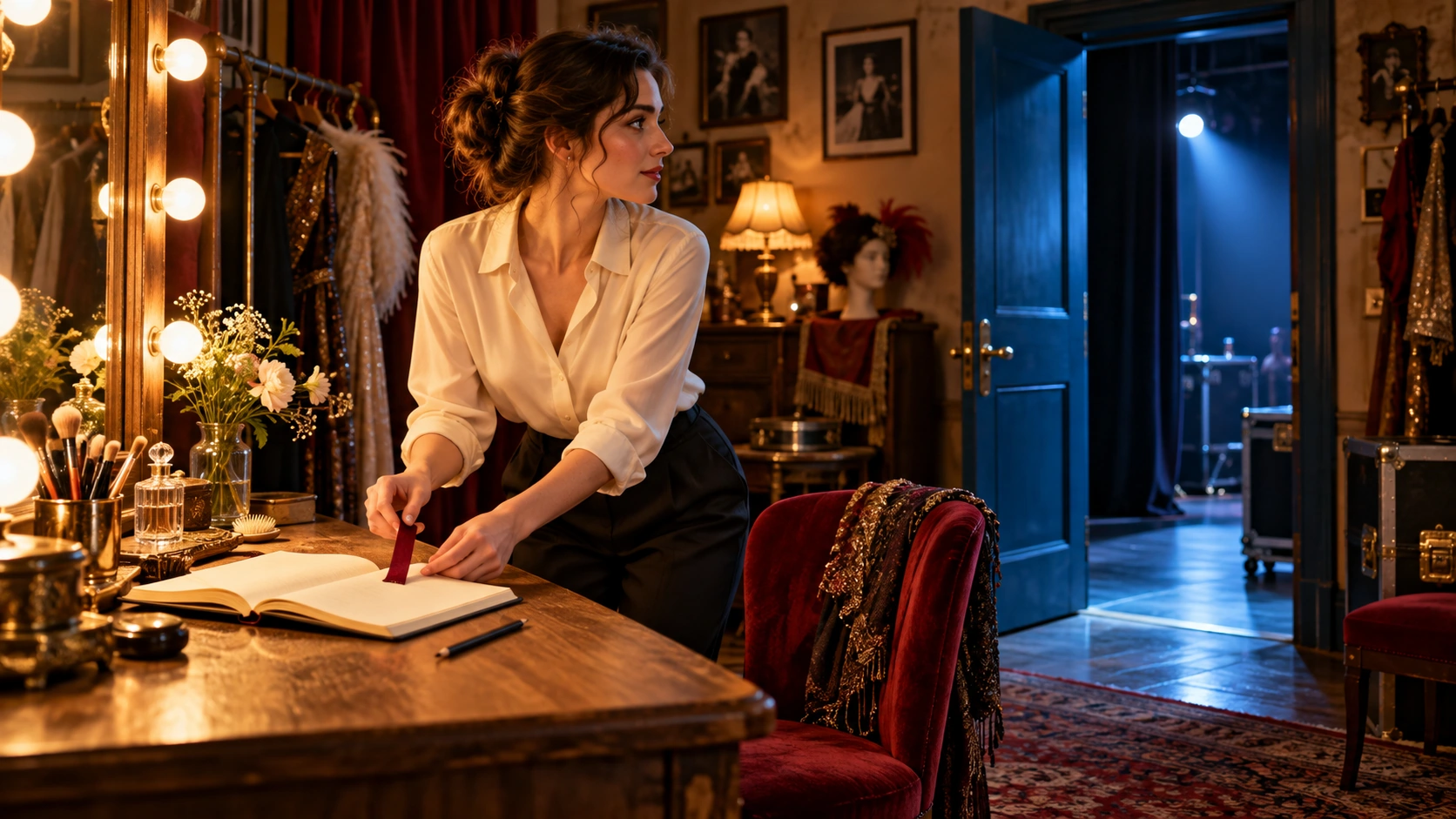
An original scenario you can adapt
The notebook on the table
A theatre dressing room with a mirror, a red chair and an open notebook.
An actress preparing to go on stage.
From the first action to the final image
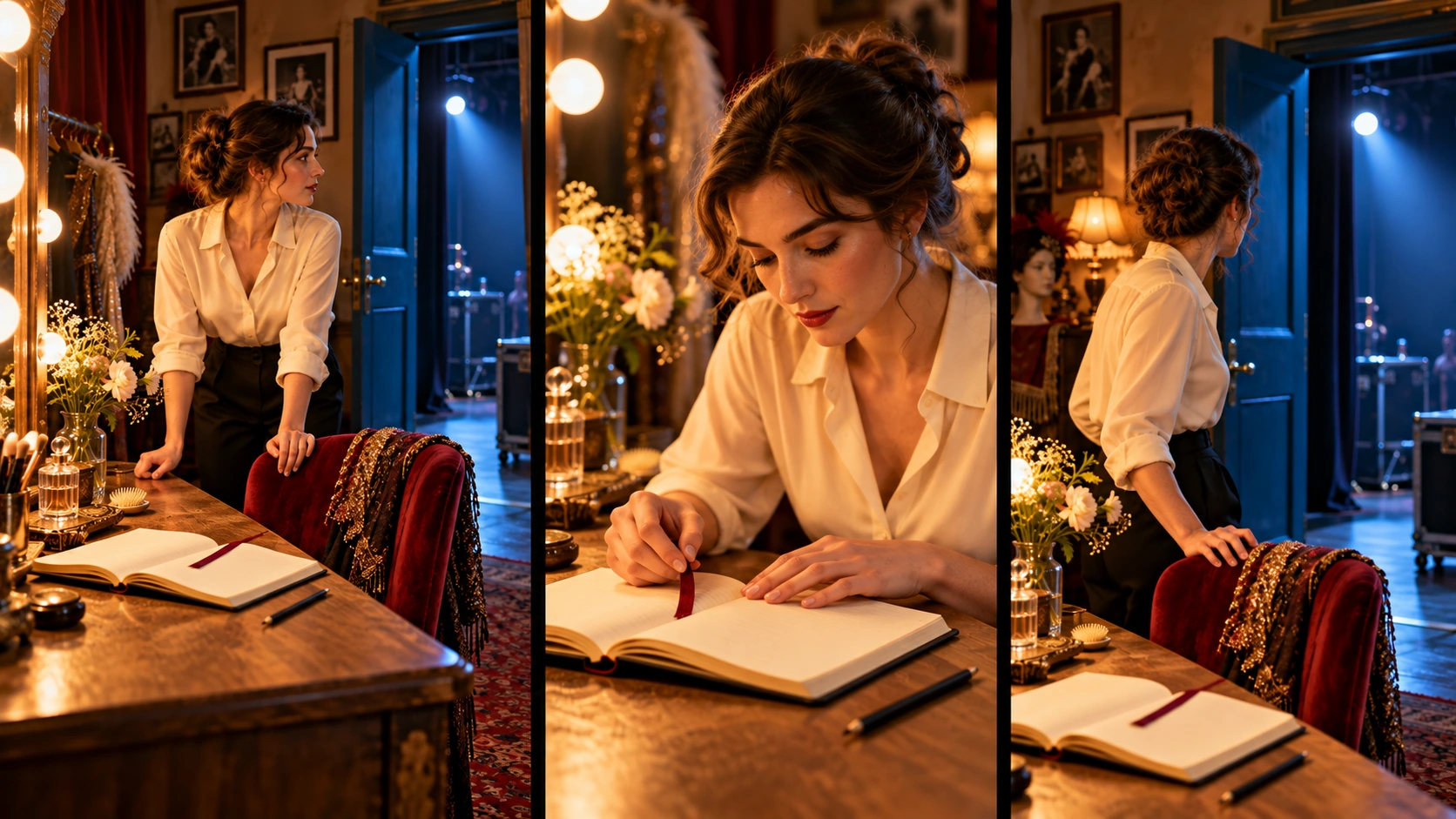
The wide shot establishes the notebook on the left and the door at the back.
In a closer shot, she marks a page and puts down her pencil.
The reverse angle preserves the door and notebook positions.
One way the dialogue could begin
“Are you ready?”
“Give me one more line.”
The details that shape the scene
A small continuity sheet before production
Record object positions, their state and the light direction. In the dressing room: notebook open on the left, pencil down, door behind. A close-up changes the framing; it should not move those landmarks without an action in the story.
In Studio, compare a new image with its reference before animation. Check clothing, occupied hands, water level or an open page as needed. A reference reduces ambiguity without guaranteeing a perfect match; keep a list of edits to review.
The details that shape the scene
Record the position, condition and direction of important props.
Compare each new shot with a continuity reference.
Keep a correction list for variations that survive reference images.
Describe your idea
A place, a character, an action. After signing up, continue with your idea and adapt the story to your intention.
Choose your workflow
Express automates story production. In Studio, prepare references and review images before animating them.
Review and start creating
Choose available options and check the displayed cost before starting. Then review scenes, voices and subtitles.
Before you start
How do I connect scenes without a continuity break?
Record character positions, props and what just happened. The next shot should start from the state left by the previous one.
What should I compare before animating scene images?
Check faces, clothing, location and important objects. Studio lets you inspect each scene image before animation; review continuity again in the finished video.
Does the button generate a video immediately?
It saves your idea in this tab and opens signup. Creation starts after you choose and launch it in the application. Existing signed-in members continue in the editor.
FruitStory
More ideas to explore
AI Character Generator for Stories
Create an AI character for your videos: face, outfit, silhouette and reference images. Develop a recognisable look, then bring the character into your story.
Script to Video AI
Turn your script into an AI video: adapt the text into scenes, characters and dialogue. Create with Express or prepare each shot in FruitStory Studio.
AI Video Dialogue: Choose the Spoken Language
Choose the language of an AI video’s dialogue. Separate site language from spoken lines and check vocabulary, voices and subtitles in each version.