
Image to video · A clip from your starting image
Turn an image into an AI video
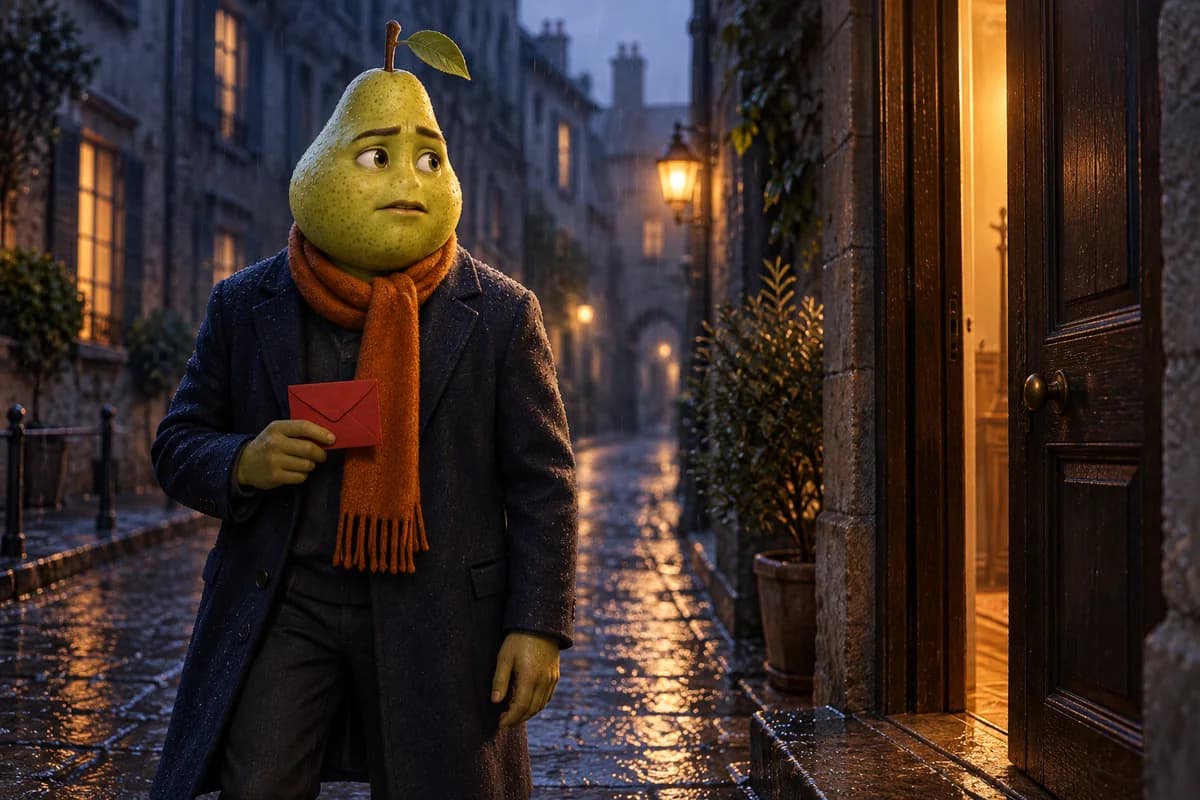
Start with your image, choose an action and create a 6, 10 or 15-second clip in FruitStory. A mascot turning around, a character reacting or an object moving: first plan the movement you want to see.
The preparer below helps you write the motion prompt and estimate clip credits. You then start video generation in the app with an imported image and an account.
Preparing a prompt is free. Generating a video uses credits; this preparer does not generate a clip.
Free preparation
Plan the movement in your image
Describe what should move. Then copy this prompt into FruitStory’s video tool with your starting image.
The prefilled values are a fictional writing example. They are not taken from a tested video. Review the actual result and voice after generation.
Estimate the credits for your clip
· 6 s · 720p
For a clip with one already imported image. Creating a new image or generating another clip uses additional credits. Confirm the price displayed near the generation control in the app.
This preparer creates text, not a video. It does not ask for an image or start a generation.
How to turn your image into a clip in FruitStory
- Start with a clear image. Choose one PNG, JPG or WebP image with a visible subject and props. For a speaking character, an unobstructed mouth makes the result easier to inspect.
- Describe one main movement. Use the preparer to name the subject already in the image and what they do. “They turn their head toward the camera” is easier to inspect than five actions and a change of setting.
- Open the tool on the Video tab. Use the image import control and paste the prompt. With one image, it becomes the starting frame. Adding multiple references instead starts by composing a new scene before animating it.
- Choose the duration, resolution and format. The tool offers 6, 10 or 15 seconds at 480p, 720p or 1080p. Choose a vertical 9:16, horizontal 16:9 or square 1:1 format too. Confirm the cost displayed near the generation control before starting the clip.
- Review the clip before downloading it. Check the motion, framing and subject details. If you requested a spoken line, listen to the actual words and watch the mouth too. You can download the result; another generation uses additional credits.
Animate one image or create a complete story?
The image-to-video tool lets you direct a clip from a visual. Use Studio to prepare and review multiple scenes. Choose Express to hand a complete story to the automatic workflow. The credit estimate above covers a clip with an imported image, not an Express story quote.
Four details to check in your result
- Does the subject perform the requested action without distracting extra movement?
- Are their face, hands and props still clear?
- Does the framing keep the important details visible until the end?
- If you requested a line: are the actual words, language and speaker correct?
A prompt describes an intention. It does not guarantee an identical appearance, a specific voice or an exact movement. Simplify anything ambiguous before trying again.
Image animation questions
Can I animate an image for free?
The prompt preparer is free and works without an account. Generating the clip in FruitStory uses credits and requires an account. The estimate separates the clip from any additional image generation.
What image files can I import?
The video tool accepts PNG, JPG and WebP images. Start with one image to use it as the starting frame; multiple references trigger a scene composition before animation.
Can my image speak in the clip?
You can request a short spoken line and specify its language in your prompt. After generation, review the audible words, speaker and mouth movement. The request does not guarantee a particular voice or pronunciation.
Does the preparer send my image to an AI?
It does not ask for an image and only assembles your prompt. Image import and generation happen later in the FruitStory app when you choose to start the clip.
Improve your starting image or motion prompt
Ready to direct the first movement in your image?
Copy your prompt, import one image in the video tool and confirm the clip price before starting generation.