A talking animal video works when the character has something to hide, demand or discover. Give your cat, dog or parrot a reason to speak, then build the image, dialogue and reaction around that idea.
This guide develops the original breakfast scene from our French article. You can adapt the lines and visual brief, then prepare the scene in FruitStory Studio or use Express for an automatic story workflow.
Choose your talking animal video workflow
For a whole story, Express starts from your idea and the available creative options. It runs writing, media generation and assembly after launch. For more control over the starting image, Studio lets you prepare the cast and scene images before animation.
If you already have an animal image, use the image-to-video guide to plan its motion. A photo can guide the appearance; it does not guarantee an exact likeness or perfect mouth movement. Check the audio options available in your chosen workflow instead of assuming every model supports the same voice controls.
Original example: the breakfast security guard
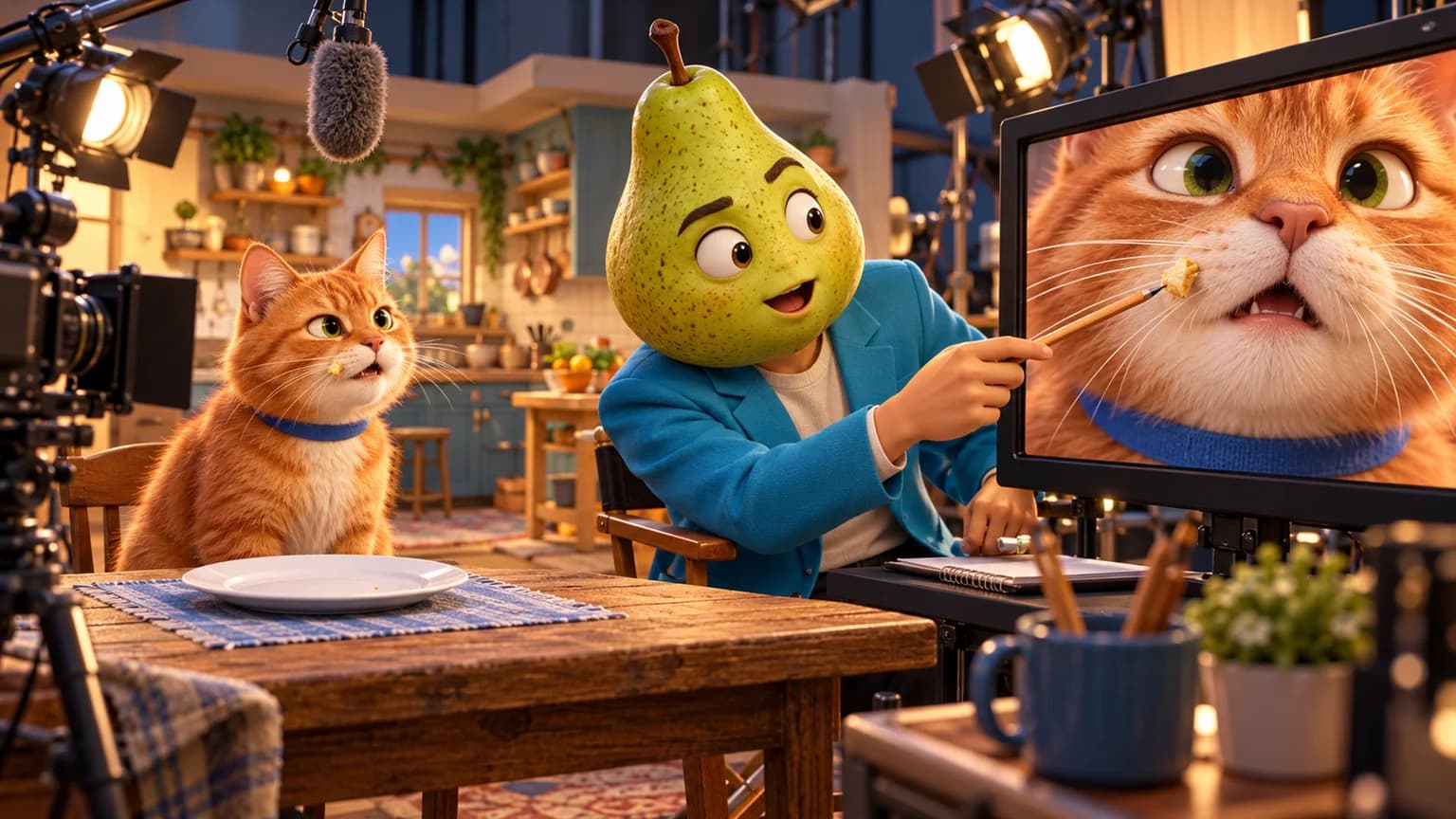
A ginger cat sits behind an empty plate. A croissant crumb is caught on one whisker. The cat tries to look professional while an unseen person notices the evidence.
- 01The question
Off-screen person: “Were you guarding my croissant?”
- 02The line
Cat, completely serious: “Yes. It tried to escape.”
- 03The reaction
Reaction: the cat notices the crumb and slowly pushes the plate out of view.
The line reveals the cat’s bad faith; the final gesture keeps the joke visual. This is a written scene to adapt, not a video generated or tested in FruitStory. Change the species, setting, register and ending to suit your own story.
Prepare the animal image
Keep the fur, collar, muzzle and props readable. A face shown clearly from the front or a slight three-quarter angle is easier to inspect than a distant animal hidden behind a paw. Here is an editable image brief:
CHARACTER: ginger cat, cream muzzle, plain blue collar.
SETTING: morning kitchen, empty white plate on a wooden table.
DETAIL: one croissant crumb caught on a whisker.
FRAMING: close shot, face and plate visible, soft morning light.
EXPRESSION: serious, as if delivering an official report.
STYLE: stylized 3D animation. No text in the image.
Keep the spoken line out of the image description. Plan it separately so you can review appearance and delivery as distinct parts of the scene.
Direct the voice and movement in English
DIALOGUE LANGUAGE: English.
SPOKEN LINE: “Yes. It tried to escape.”
DELIVERY: calm and matter-of-fact, with a pause after “Yes”.
ACTION: look toward the unseen person, speak, notice the crumb,
then slowly push the plate away. Adapt the timing to the chosen clip.
A short line gives you a clear starting point, not a rule for every video. For a conversation, identify who speaks each line and check the transitions between speakers. The page language and your characters’ dialogue language are separate choices.
Review the clip before publishing
- Watch without sound: can you understand the cat’s reaction?
- Listen without the image: are the words clear and the delivery right for the character?
- Watch both together: does mouth movement follow the line, without an extra voice or a cut syllable?
- Compare the collar, muzzle, paws and plate with the starting image.
- Leave the final gesture visible long enough for the joke to land.
AI can change a face, accessory or gesture between frames. Fix the issue that obscures the scene rather than adding more instructions to every part of the prompt.
Start your own animal scene
Prepare your character and scene in Studio when you want to review the image before animation. Open Express when you prefer the automatic story workflow. The current offers explain access to generation.
For another dialogue format, read how to make an image talk. For a longer story, build a recurring cast and check each scene. Use images, voices and music you have permission to use, and check the publication rules of your chosen platform.