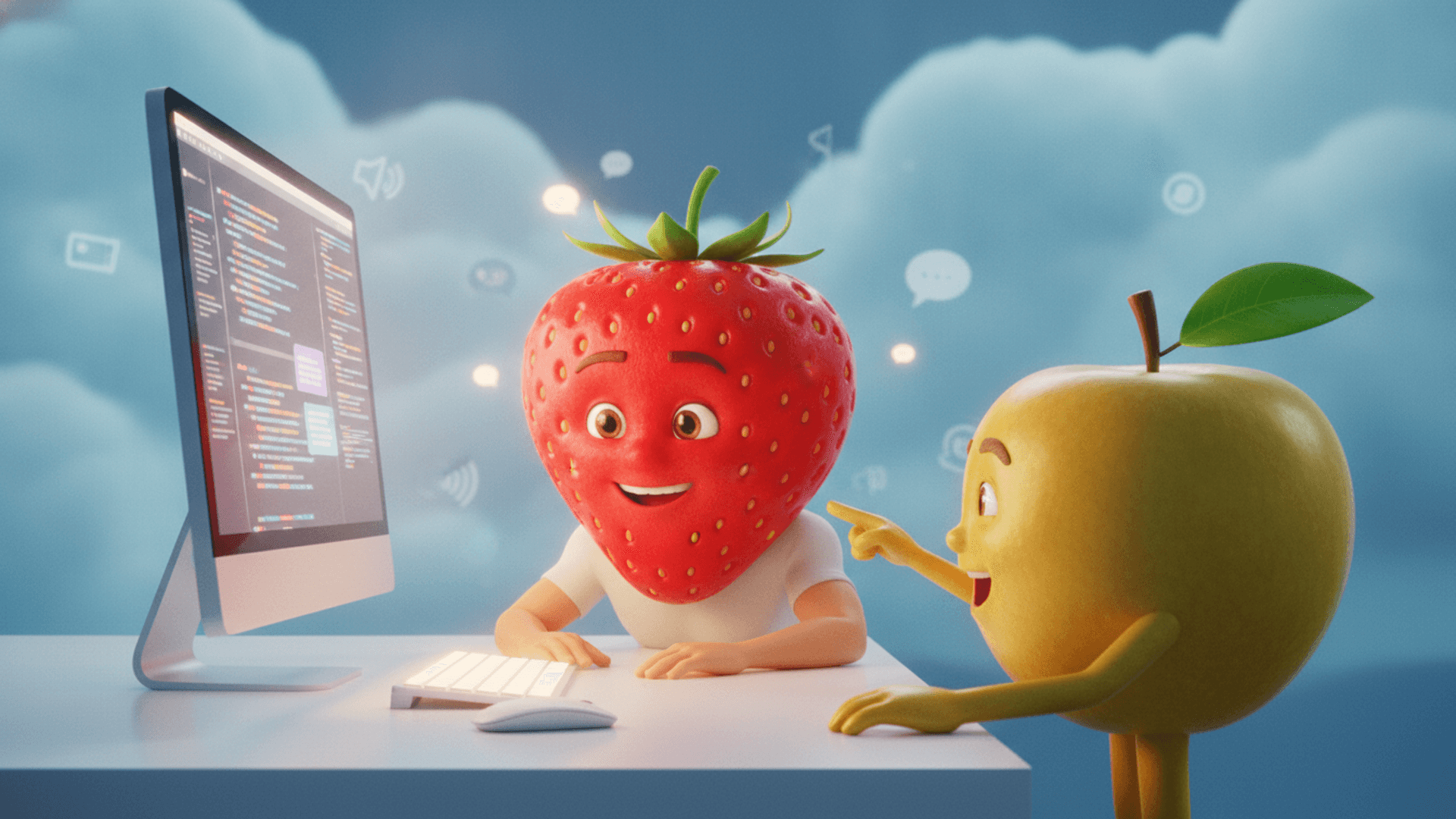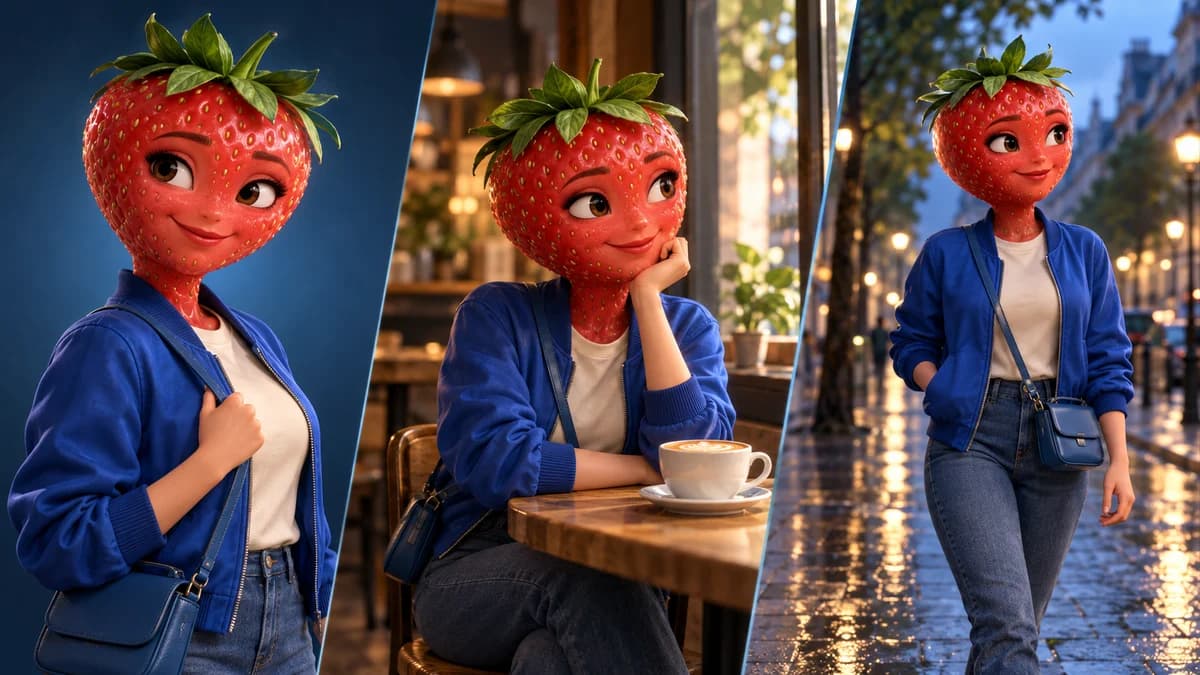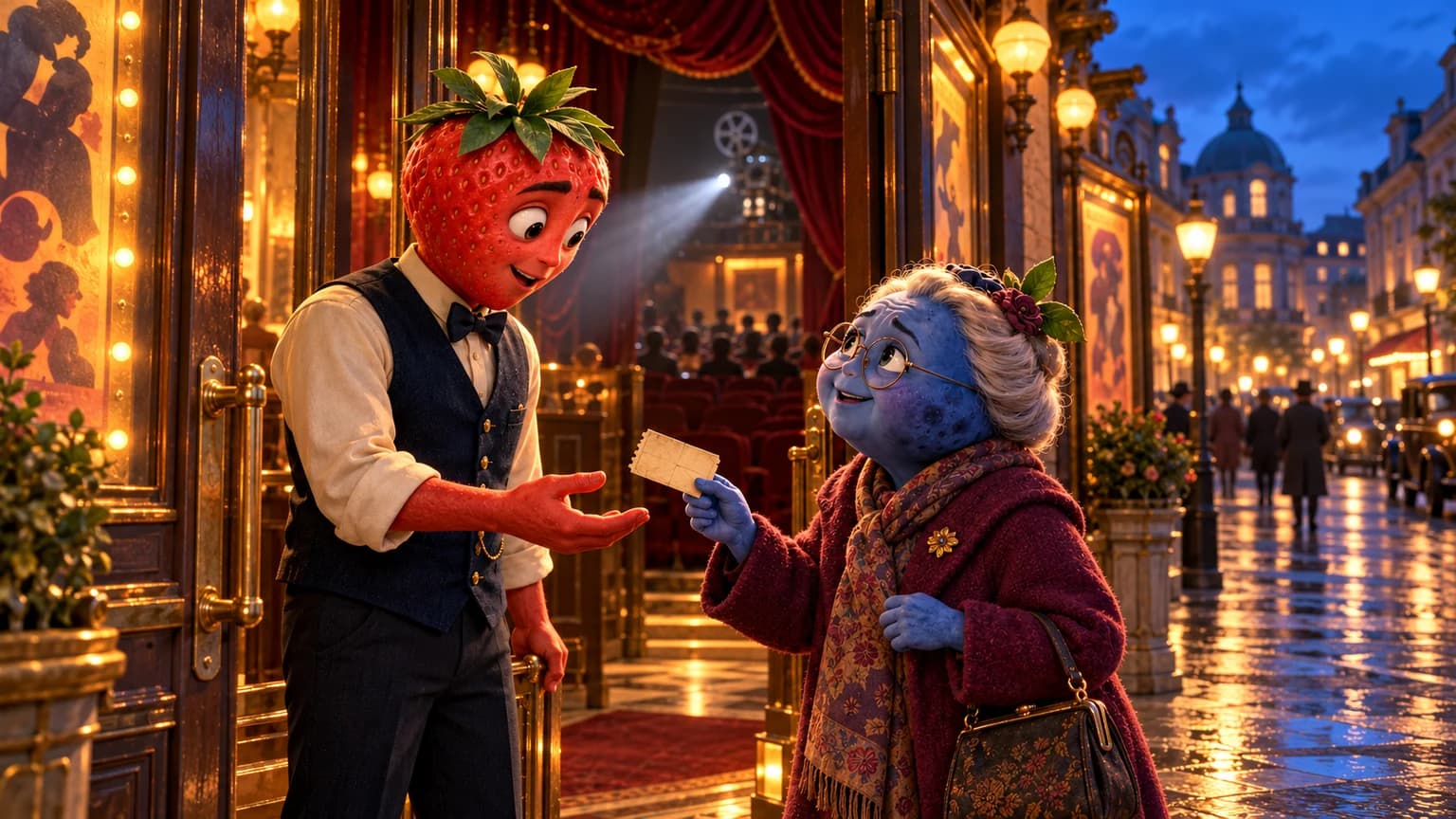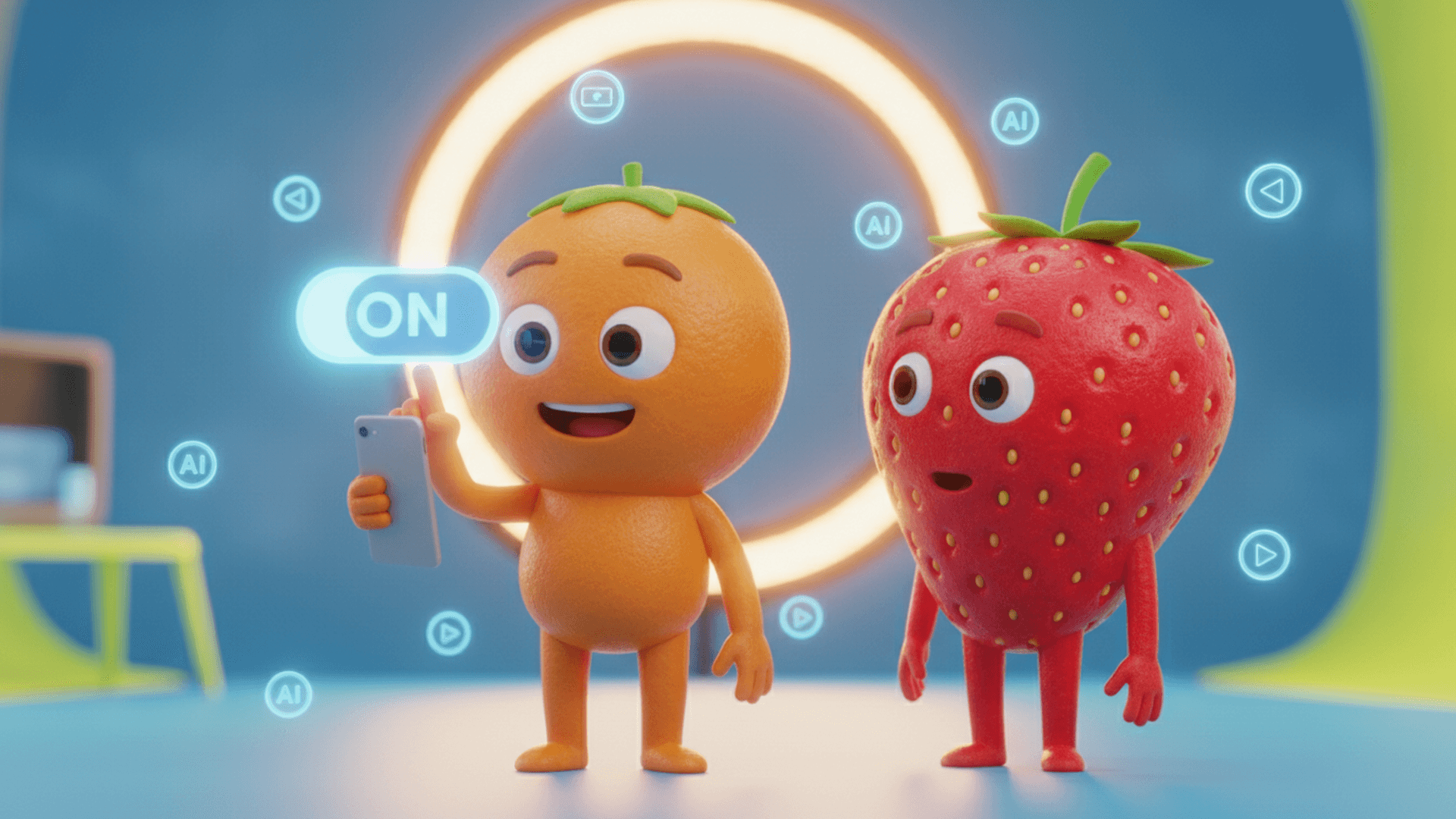
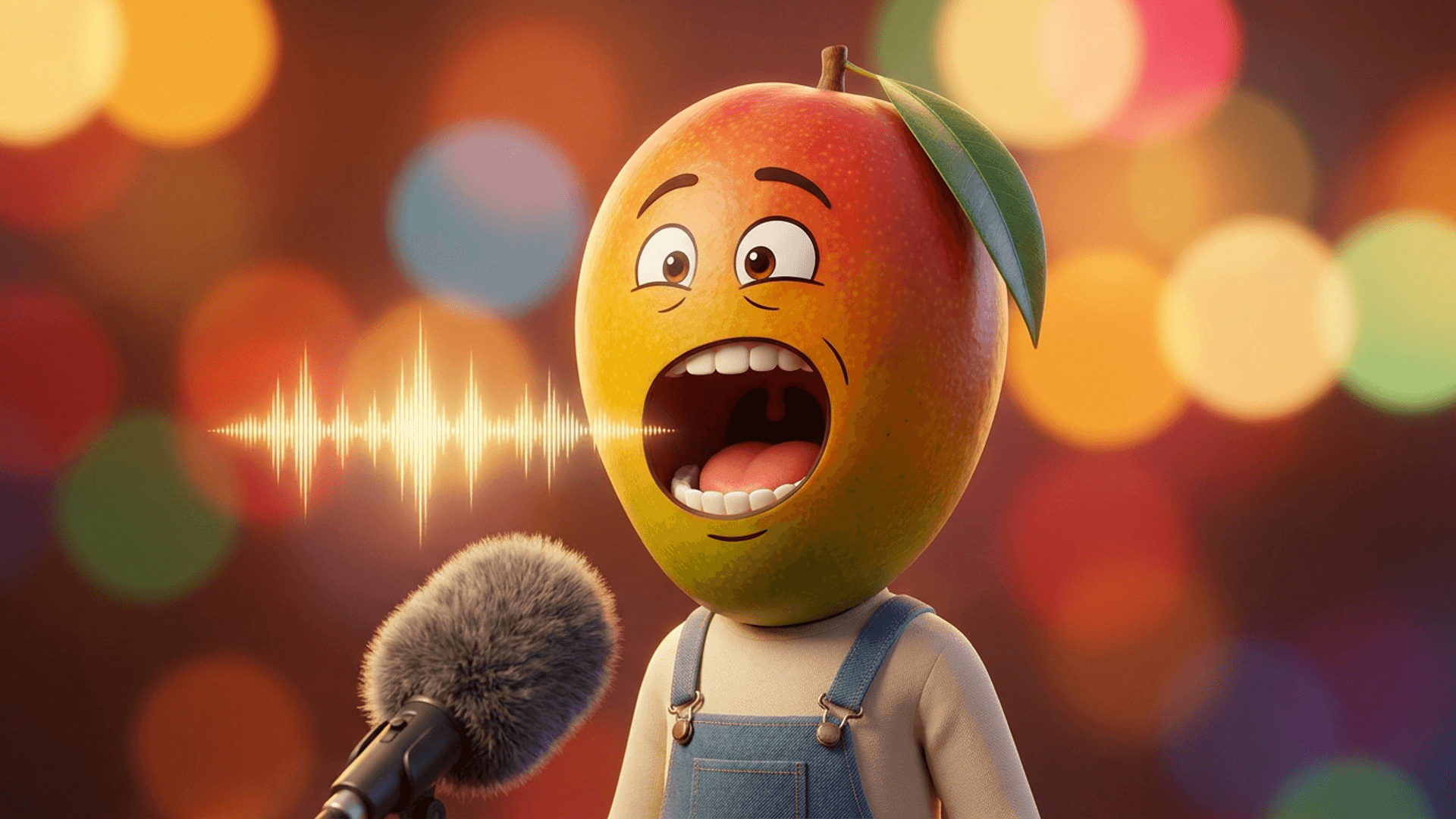
To make an image talk, give the speaking character a clear identity, write the exact line and choose how the audio will be produced. Adding a voice over an animated picture does not automatically synchronise its mouth.
This guide gives you an English example and a two-character exchange to adapt. The prompts are writing examples, not generated clips or measured success rates.
Choose between recorded audio and a spoken scene
If you already have a recording, look for a lip-sync workflow that explicitly accepts your image and audio file. If you want to write a scene, choose a video model that generates speech with the picture. A voice-over is a different option: the character does not need to mouth its words.
The xAI video documentation describes synchronised speech on certain models. That does not establish what every interface or plan includes, or prove a result for your character.
Prepare the image and the line
Check that the mouth is visible and the lighting lets you read the face. A closer framing can help you inspect articulation; choose it when it suits the scene. Keep an approved reference if you change the setting. See character continuity between shots.
Starting image: a pear wearing a green jacket holds two tickets outside a brightly lit cinema. Keep her reference appearance and clothes.
Action: she notices her friend off-screen, looks up and offers the spare ticket. Frame her face clearly.
Speech: the pear says in English, surprised and amused: “Did you cancel your whole trip just to watch this film with me?”
Keep the cinema-lobby ambience quiet enough to hear her.
Read the line aloud with the intended performance and compare it with the available clip duration. Shorten it or split the exchange if necessary. There is no universal word count or compulsory emotion for every scene.
Give two characters separate lines
The pear in the green jacket is on the left. The blueberry in the cream hoodie is on the right, with headphones around his neck.
Pear, surprised: “Did you cancel your whole trip just to watch this film with me?”
Blueberry, showing his phone: “No. My train was cancelled. I was working on a better excuse.”
They speak English. The blueberry listens during the question; the pear reacts during the reply. Keep their voices distinct.
If both mouths still recite the same line, you can try separate shots of each speaker and edit the exchange. This is a staging option, not a requirement to cut every conversation into the same pattern.
Find the problem before repeating the whole sequence
- Wrong spoken language: check the generation-language option and the written line. Listen to the audio; translated subtitles do not prove the character speaks that language.
- Wrong speaker: match each name to a visible character. Replace ambiguous “he” or “she” with the right name and a useful visual detail.
- Mouth out of sync: check whether the workflow actually generates speech or accepts audio for lip sync. Moving a soundtrack can fix a global delay, but cannot redraw the mouth.
- Line cut off: compare the performed line with the clip length. Preserve its meaning rather than speeding up every voice.
Choose reading language and dialogue language separately
The language selector on this guide changes what you read. In FruitStory Express, choose the spoken language for your video, then describe the scene and its lines in your idea. Express runs the creation; it does not pause for approval of each image.
Choose Studio when you want to check scene images before animation. Do not assume another provider’s audio-upload or voice-cloning functions are available in FruitStory. Check the finished audio and the current offers.
For a fruit character, explore the talking-fruit workflow. For an existing picture, see image to video.
Reviewed on 21 October 2026 using the FruitStory workflow and the cited official documentation, including image-to-video. No audio or video was generated for this guide. Check your rights to images, voices and music before publishing.